In this post I will show you how to set up VSCode to run an XSLT program
Prerequisites
- Install the “XSLT/XPath for Visual Studio Code” extension

- Install NodeJS latest version, which can be downloaded from here
- This is only necessary if you want to use SaxonJS
- Install Java, which can be downloaded from here
- This is only necessary if you want to use Saxon Java
- Install Saxon
- You can find the installation process for Saxon JS and Saxon Java here
Set up the project
Open a Folder in VSCode where you want to write and run your code.
Run ‘Ctrl + Shift + B’ command or ‘Command + Shift +B’ on Mac to open the taskbar window.

this will open the taskbar window to set up a task if it’s not already set up, if it’s set up already then it will run the code.
If it the first time please click on Configure Build Task option to configure a new build task.
Choose the Saxon engine you want to use ( Java or JS ).

If you don’t see the new tasks after installing the XSLT module, try to close and restart VSCode.
In my case I have chosen the Java engine and the result is like below.
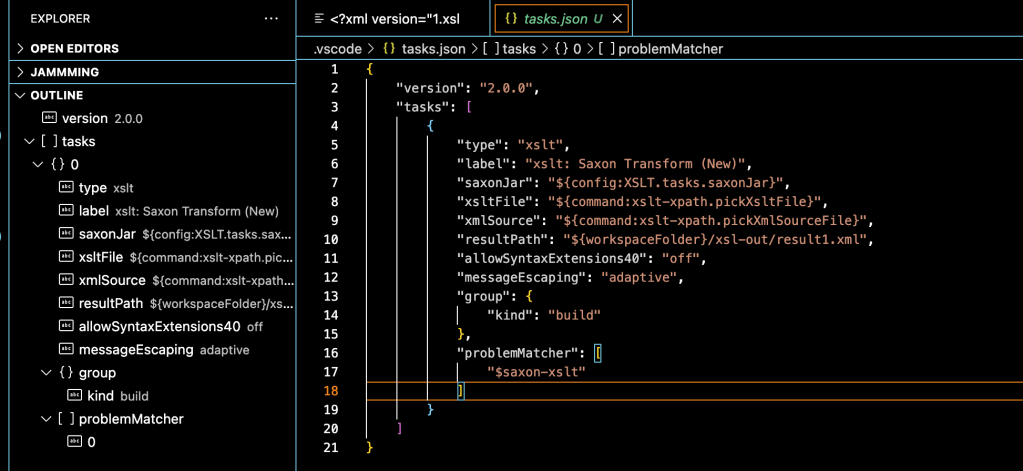
A template JSON configuration file has been created. You can change the task label or even the path for the source and transformation file. You can also just keep the picker that will open the file explorer for you to navigate and find what you are looking for.
You can find here more information on the variable available for the JSON configuration file. Check the section “Variable References in Tasks“
Create an XSLT file
For the input file, I picked a random XML file from the MDN Web Doc.

We are then going to create an XSLT file to transform this input file.
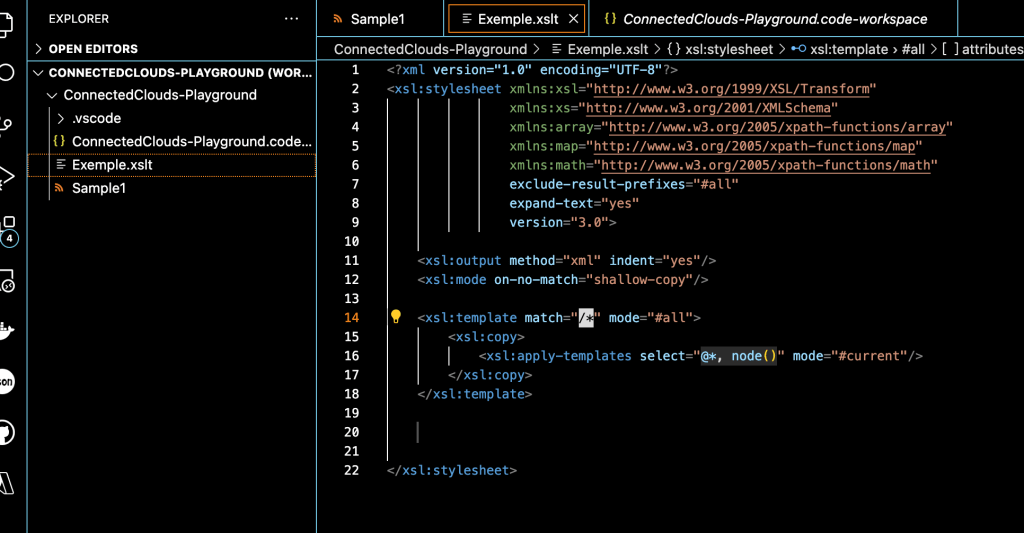
You can create a simple XSLT exemple using the Intellisense of the XSLT extension or create one from scratch if you want.
Create a new file with the XSLT extension.

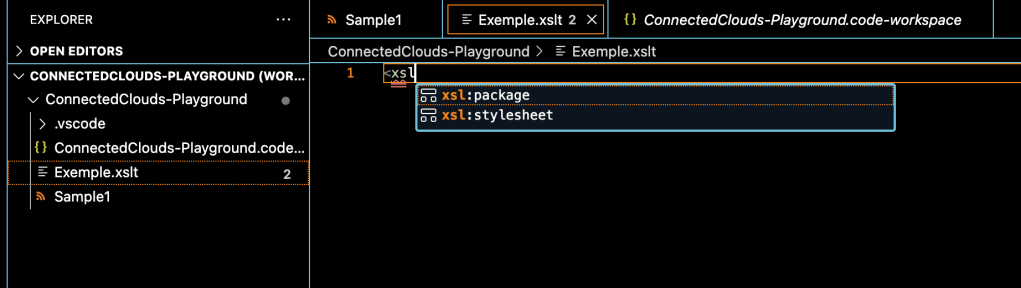
Just type <xsl and you will have some suggestions. Choose the <xsl:stylesheet> tag.
The result will be as below
Run the XSLT
To run the XSLT you have to run the task that you previously set up. You can do either thru the toolbar Terminal > Run Build Task or with a key combination ( Ctrl+Shift+B or Option+Shift+B ).
If you left the picker in your JSON configuration you will have the result below. If you specified directly the input and output, the XSLT program will run directly.
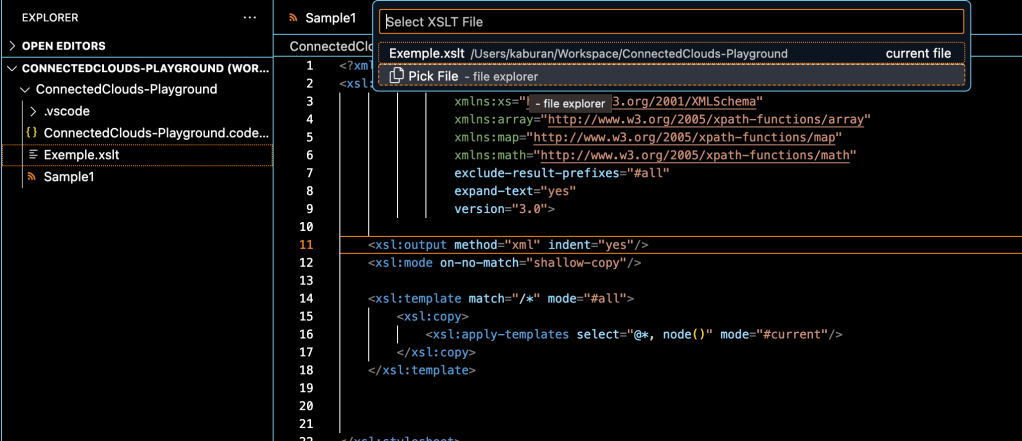
For my file picker people, first choose the XSLT program you want to run.
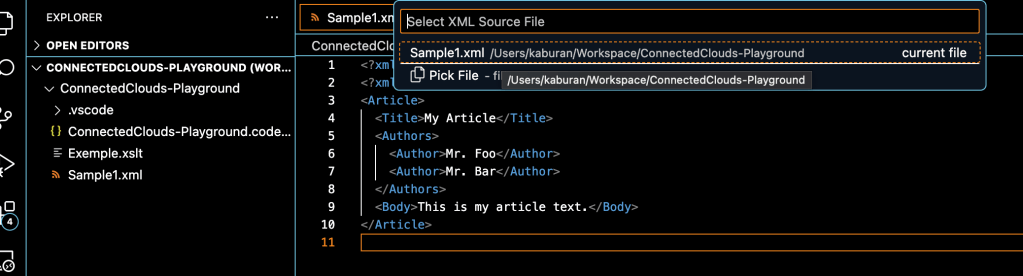
Then you choose the input file you want to run.
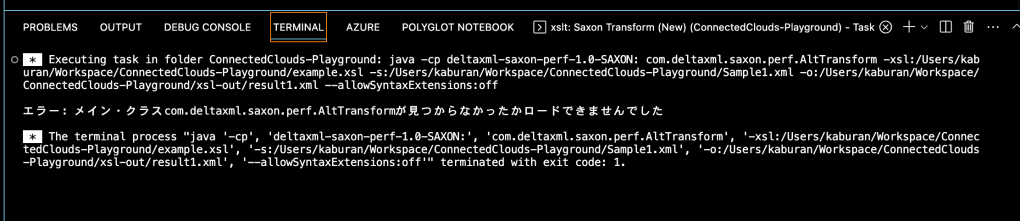
If there are any errors you will see them in the terminal.
Your output will be created with path and filename specified in the JSON configuration under resultPath.
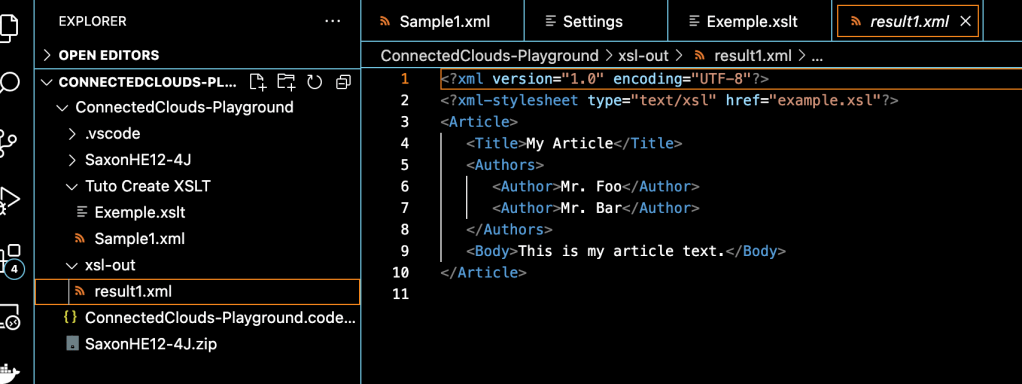
The XSLT program is a simple one that copies the input file into the output.
I hope that this article will help you create XSLT programs with VSCode.
Have a good one !
 The Connected Clouds